I’m looking to buy a new camera for streaming, after a long search I’ve narrowed down to 2 models,
the Logitech MX Brio and the Obsbot tiny 2 lite.
The Obsbot Tiny 2 Lite stands out for streaming due to its PTZ gimbal, AI auto-tracking, and gesture control, making it ideal for dynamic content creation over the static Logitech MX Brio.
Both are premium 4K webcams priced around $160-$200, but the Obsbot edges ahead for streamers needing movement freedom.
I’ll try to put some different scenarios and different point of views and uses of each.
Key Specs Comparison
| Feature | Logitech MX Brio | Obsbot Tiny 2 Lite |
| Resolution/FPS | 4K/30, 1080p/60 | 4K/30, 1080p/60 |
| Sensor Size | 8.5MP Sony Starvis | 1/2″ CMOS, 48MP |
| Field of View | 90° (adjustable 65-90°) | 79.4°-85.5° |
| Movement | Fixed, tilt/rotate mount | PTZ gimbal (pan/tilt/zoom) |
| AI Features | Auto-framing, light correction | Auto-tracking, gesture control |
| Microphones | Dual beamforming, noise-reducing | Dual omnidirectional, noise cancel |
| Connection | USB-C | USB-C |
| Price Range | $180-$200 | $95-$179 (often ~$159) |
| Weight/Mount | 63g, magnetic clip | 91g, built-in gimbal/1/4″ thread |
Streaming Performance
The Obsbot Tiny 2 Lite excels in low-light and tracking tests, maintaining natural colors during movement, which suits live streams or e-commerce demos.
Logitech MX Brio delivers sharper 4K in static setups with better HDR but can blow out in low light without tracking.
Both handle noise-canceling audio well, but Obsbot’s gimbal allows free movement without losing frame.
Which to choose?
Choose the Obsbot Tiny 2 Lite for streaming—its AI tracking and PTZ keep you centered dynamically, aligning with e-commerce visuals like product demos.
Opt for MX Brio if you prefer a simple clip-on for fixed desk streams with premium build.
I searched and tried to compile all the Pros and Cons for both cameras, so let’s dig.
You can get them here:
Obsbot Tiny 2 Lite
Logitech MX Brio
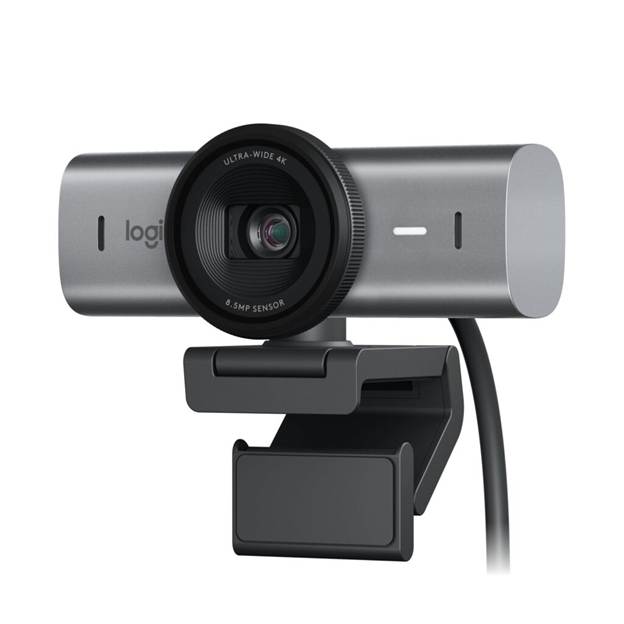
| Logitech MX Brio 10 Pros |
| 1- Very strong choice for a static desk / talking-head stream. 2- Crisp-looking image when lighting is good. 3- Simple workflow: mount it, set framing, go live. 4- Generally fewer moving parts = fewer “tracking surprises.” 5- Typically plays nicely with common video apps and OBS as a standard webcam. 6- Compact and easy to travel with. 7- Good for professional calls + streaming (hybrid use). 8- Tends to have stable framing (no camera motion mid-stream). 9- Usually easy to color-match with other Logitech cams if you already own one. 10- Good option if you want minimal setup complexity. |
| Logitech MX Brio 10 Cons |
| 1- No motorized pan/tilt—can’t follow you if you move around. 2- Any auto-framing is effectively a digital crop, which can reduce detail. 3- Low-light still needs a real key light to look clean. 4- Less suited to standing desk, whiteboard, or room-scale content. 5- Can look “webcam processed” if sharpening/auto settings are aggressive. 6- Not as “production-like” for solo creators who want dynamic shots. 7- The built-in mic (like most webcams) is rarely stream-grade vs a dedicated mic. 8- Premium pricing may feel steep if you mainly output 1080p anyway. 9- Fixed wide-angle can be unflattering up close unless you manage distance/FOV settings. 10- If you want multi-angle looks, you’ll need a second camera or manual repositioning. |
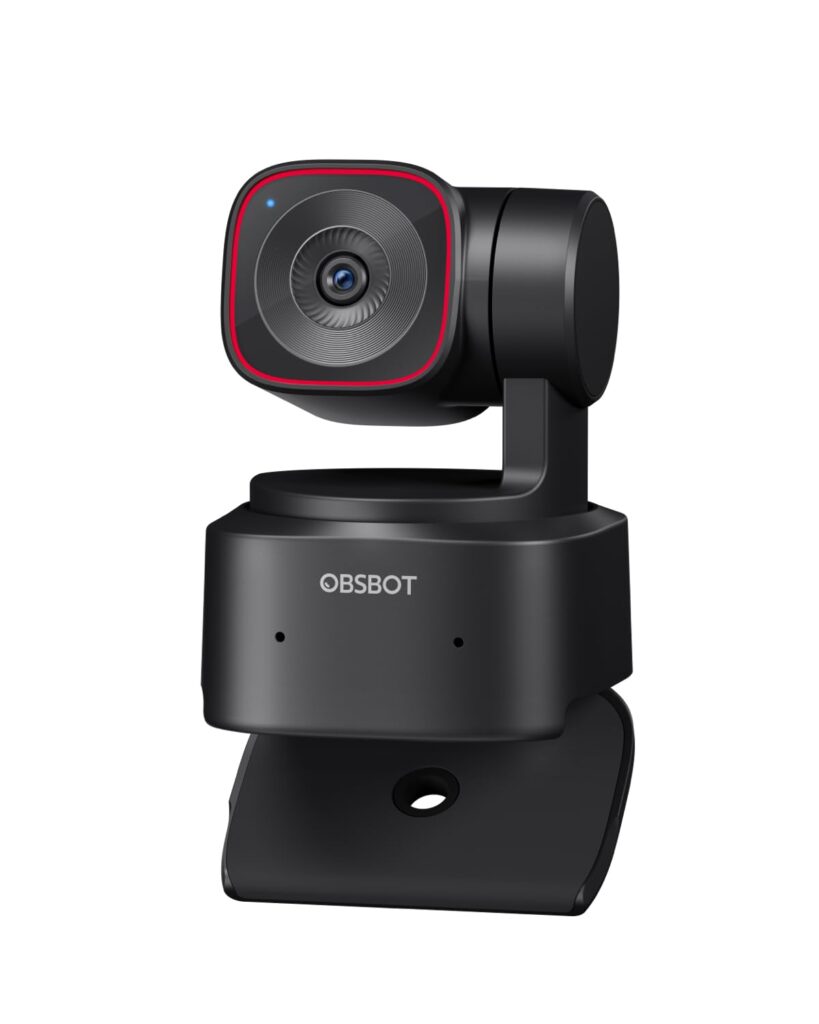
| Obsbot Tiny 2 Lite 10 Pros |
| 1- PTZ + AI tracking is great for creators who move (standing desk, demos, teaching). 2- Can keep you centered automatically—helpful when streaming alone. 3- Presets can jump between face / desk / wide shots quickly. 4- More “mini camera operator” feel than a standard webcam. 5- Great for product demos where framing changes often. 6- Lets you step back from the desk without losing the shot. 7- Can reduce the need to constantly adjust the camera by hand. 8- Often makes a single-cam setup look more dynamic and intentional. 9- Useful for presentations (follow the speaker rather than a fixed crop). 10- Strong value if you’ll actually use tracking/presets regularly. |
| Obsbot Tiny 2 Lite 10 Cons |
| 1- More complexity: software + settings + possible firmware quirks. 2- Tracking can be imperfect (occasional wrong framing / losing the subject). 3- Motor movement can be distracting if it re-frames too often. 4- Potential for faint motor noise (varies by room/mic placement). 5- If you only sit still, many features become unnecessary overhead. 6- Auto-zoom/reframe may feel “twitchy” until tuned. 7- The best results still require good lighting—tracking doesn’t fix dim rooms. 8- PTZ motion isn’t a replacement for true multi-camera shots (still one angle). 9- Some people prefer a locked-off camera for consistent composition. 10- If you need absolute reliability with zero surprises, a fixed cam can be simple |
In my case, even if both cameras have AI features, I’ll be using the Nvidia Broadcaster Software and OBS Studio along a 16″ light ring, and I’ll seated 4-6 feet away from the camera, so I created few scenarios on which camera would work best for me.
With a ring light + NVIDIA Broadcast background removal + an OBS “virtual studio,” the setup is already optimized for a clean seated face-cam—so the best choice is usually the camera that gives the most stable, natural face image with the least friction: Logitech MX Brio.
Why MX Brio fits your workflow
- For seated reviews, you typically want a locked composition (no re-framing mid-sentence), and a fixed webcam like MX Brio naturally stays consistent while you talk.
- NVIDIA Broadcast can remove/replace/blur your background without a green screen, so you don’t need the Tiny 2 Lite’s PTZ/tracking to “manage” the background—Broadcast already does that job.
When Tiny 2 Lite still makes sense
- If you want to add “production” touches (preset angles, occasional zoom/pan for emphasis) Tiny 2 Lite can do that via its software and presets/virtual camera features, even while staying seated.
- If you ever plan to stand up for demonstrations, the PTZ + tracking becomes a real advantage, but it’s less critical for a pure talking-head review format.
Best practice settings (quick note)
- In OBS, use the camera at 1080p for streaming, and prioritize consistent exposure/white balance rather than letting everything run on auto; your ring light makes this easy.
- Run NVIDIA Broadcast as the camera source when you want background removal, since it outputs a processed “Broadcast” camera feed you can select in OBS.
For a crisp tech review (seated face-cam, ring light, NVIDIA Broadcast + OBS virtual studio), pick the Logitech MX Brio—reviewers consistently note it resolves fine facial detail very well in good lighting, which is exactly the “crisp” look you want.
Why MX Brio matches “crisp”
The MX Brio is repeatedly described as showing more fine detail (facial hair, fabric texture, etc.) in well-lit setups, and your ring light puts you in that best-case scenario.
Since you’re seated, you don’t benefit much from PTZ/tracking, so you avoid any re-framing/auto-zoom behavior that can make a review shot feel less “locked” and studio-like.
How to set it up for maximum crispness
In OBS, run 1080p/60 if you want the smoothest motion (hand gestures, product handling), or 4K/30 if you want maximum fine detail (then downscale in OBS for a very sharp 1080p output).
With NVIDIA Broadcast background removal/blur, keep your face well-lit and evenly exposed (ring light slightly above eye level) to help the AI edges look cleaner against your virtual studio background.
When Tiny 2 Lite would still win
Choose the OBSBOT Tiny 2 Lite only if you want the option to add movement/presets for “director-style” framing changes; it’s also reviewed as very sharp, but its killer feature is the AI PTZ workflow rather than a simple locked-off review look.
If you want, share your OBS output target (Twitch 1080p60 vs YouTube 1440p/4K) and your camera distance (about how many inches/feet), and I’ll give the exact resolution/FOV choice to avoid distortion while staying razor sharp.
What about theField of View?
At 4–6 feet, you’ll get the crispest “tech review” look by using a narrower FOV so your face fills more of the frame (less “wide-angle room cam” look).
Best framing choice
Logitech MX Brio: set FOV to 65° (head-and-shoulders framing) and then fine-tune with a small digital zoom if needed.
OBSBOT Tiny 2 Lite: its horizontal FOV is about 67.2° (4:3) and it supports 1–4x digital zoom, so it can also frame you well at 4–6 feet without being overly wide.
Recommendation for your distance
For a seated review at 4–6 feet with a ring light and a virtual studio, MX Brio at 65° FOV is the simplest way to get a clean, crisp, consistent talking-head shot (no tracking behavior, easy repeatability).
Quick setup tips (to stay crisp)
Put the ring light slightly above eye level and don’t overexpose your face; overexposure makes skin detail look “plastic,” which reads as less sharp.
In OBS, aim for 1080p/60 for smoothness (gestures/product handling) or 4K/30 downscaled to 1080p for maximum fine detail if your system can handle it cleanly.
One detail that will decide the exact settings: do I wear glasses on stream?
No I don’t wear glasses
At 4–6 feet and no glasses, go for a tight talking-head frame and let your ring light + NVIDIA Broadcast do the “studio polish.”
Best settings (MX Brio recommended)
Set FOV to 65° on the MX Brio (it supports 90° and can crop to 78° or 65°), because at 4–6 feet this gives a more face-focused, crisp review composition.
If your face is still a bit small at 6 feet, add a small additional crop/zoom (either in Logitech controls or OBS), but avoid heavy digital zoom since it can emphasize noise/softness.
Use your ring light as the “real” key and keep exposure steady; PCMag notes the MX Brio’s f/2.0 lens can show more noise when it has to raise sensitivity, so consistent lighting helps preserve that crisp look.
NVIDIA Broadcast + virtual studio tips
Use NVIDIA Broadcast’s background removal/blur/replacement as your “clean cutout” source into OBS (select the NVIDIA Broadcast camera device in OBS).
If edges ever look rough, it’s usually improved by even front lighting and good subject/background contrast—your ring light already helps with that.
If you pick Tiny 2 Lite anyway
Tiny 2 Lite’s horizontal FOV is listed at 67.2° (4:3) and it supports 1–4x digital zoom, so you can also tighten framing for a seated shot at 4–6 feet.
For your use case, consider turning tracking/auto-zoom off (or keep it very gentle) so the shot stays consistent like a studio review frame.
If you want, share whether you’re usually closer to 4 ft or 6 ft, and whether you want head-and-shoulders or mid-torso framing, and I’ll suggest the exact crop target for OBS

Leave a Reply